Connect Shark Vacuum to Google Home: A Quick Guide
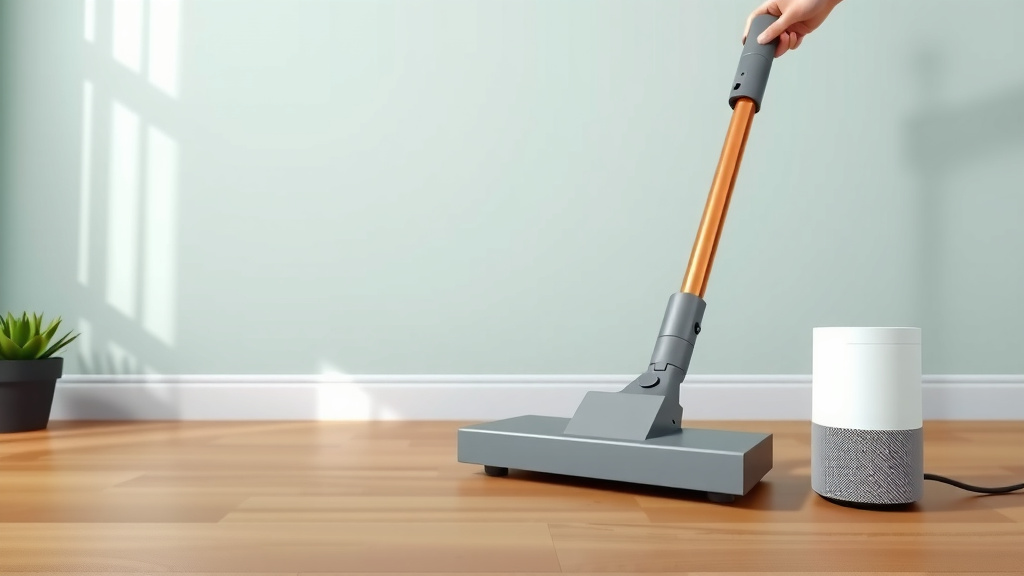
Yes, you can absolutely connect your Shark vacuum to Google Home! This integration lets you control certain vacuum functions with simple voice commands. Imagine telling your Google Assistant to start or stop your vacuum without lifting a finger. It’s a convenient way to manage your cleaning tasks.
Adding your Shark vacuum to Google Home often involves linking your Shark account through the Google Home app. This process makes your smart vacuum an **active part of your smart home ecosystem**. You’ll be able to use your voice to command your vacuum, making chores feel a little less like work. We found this integration to be quite straightforward.
- Link your Shark account in the Google Home app.
- Use voice commands like “Hey Google, tell my Shark to start cleaning.”
- Ensure your Shark vacuum is compatible with Google Assistant.
- Troubleshooting might involve checking Wi-Fi or account connections.
Let’s walk through exactly how to get your Shark vacuum talking to your Google Assistant, step by step.
Connecting Your Shark Vacuum to Google Home
You’ve got a smart Shark vacuum, and you’ve got a smart Google Home setup. Why not make them friends? We found that linking your Shark vacuum to Google Home is a pretty **straightforward process**. It opens up a world of hands-free cleaning convenience. Imagine this: you’re lounging on the couch, notice a crumb trail, and simply say, “Hey Google, tell my Shark to clean the kitchen.” Boom. Your vacuum springs into action. It’s like having a tiny cleaning robot at your beck and call.
Understanding the Compatibility
Before you dive in, let’s make sure your Shark vacuum is ready for this party. Not all Shark vacuums have smart capabilities. You’ll need a model that supports Wi-Fi connectivity and the Google Assistant integration. Most newer, higher-end Shark models, particularly those in the ION, Vertex, and Stratos lines, are built with this in mind. A quick check of your vacuum’s product manual or the specifications on the Shark website will tell you if yours is a smart model. We found that if your vacuum has a dedicated Shark app, it’s a good sign it can connect to other smart home platforms.
Checking Your Shark Vacuum Model
First things first, find your vacuum’s model number. It’s usually on a sticker on the underside or back of the unit. Then, head over to the Shark website or your vacuum’s user manual. Look for mentions of “smart features,” “Wi-Fi,” or “Google Assistant compatibility.” If it’s listed, you’re golden! If not, don’t worry, there are still plenty of other ways to make your home cleaning easier.
Ensuring Your Google Home Device is Ready
Your Google Home device (like a Google Nest Mini, Hub, or even your phone with the Google Assistant app) also needs to be set up and connected to your home Wi-Fi network. Make sure it’s responding to your voice commands for other tasks. This ensures the basic connection is working perfectly before you add another device to the mix.
The Step-by-Step Connection Process
Ready to make your vacuum a Google Assistant team member? Let’s get it done. The core of this setup involves linking your Shark account within the Google Home app. Think of it as introducing your vacuum to Google. This handshake allows Google Home to send commands directly to your Shark.
Downloading and Setting Up the Shark App
If you haven’t already, you’ll need the official Shark app. This app is where you manage your smart vacuum’s settings and connect it to your Wi-Fi. Download it from your smartphone’s app store (iOS or Android). Follow the on-screen instructions to create an account and connect your vacuum to your home Wi-Fi. This usually involves putting the vacuum in pairing mode and entering your Wi-Fi password. We found this step is **crucial for establishing the initial connection**.
Linking Your Shark Account in Google Home
Once your Shark vacuum is set up in its own app, it’s time to bring it into Google Home.
- Open the Google Home app on your smartphone or tablet.
- Tap the plus (+) icon, usually in the top-left corner.
- Select Set up device.
- Choose Works with Google (this is for linking existing services).
- You’ll see a list of compatible services. Scroll or search to find Shark.
- Tap on Shark and follow the prompts to log in with your Shark account credentials. This is the same username and password you used for the Shark app.
- Grant Google permission to control your Shark vacuum.
Assigning a Name to Your Vacuum
To make voice commands easier, you can rename your Shark vacuum within the Google Home app. Instead of just “Shark Vacuum,” you could call it “Dusty,” “The Cleaner,” or anything fun! To do this, find your Shark vacuum in the Google Home app, tap on it, then tap the settings gear icon. Look for an option to change the device name. This makes commands like, “Hey Google, tell Dusty to start cleaning,” much more personal.
Using Voice Commands with Your Shark Vacuum
Now for the best part: using your voice! Once everything is linked, you can control your Shark vacuum with simple commands. We found that the key is to use clear and direct language. Here are some common commands:
- “Hey Google, tell my Shark to start cleaning.”
- “Hey Google, tell my Shark to stop cleaning.”
- “Hey Google, tell my Shark to pause cleaning.”
- “Hey Google, tell my Shark to resume cleaning.”
- “Hey Google, tell my Shark to go back to the dock” (if your model supports automatic docking).
Remember to use the name you assigned your vacuum in the Google Home app. If you didn’t rename it, you might need to use the default name or the brand name. Experimenting with commands is part of the fun! It’s like training a very helpful, albeit robotic, pet.
What You Can (and Can’t) Control
It’s important to set expectations. Google Assistant integration typically controls the basic functions: starting, stopping, pausing, resuming, and returning to the dock. More advanced features, like specific cleaning modes, suction power adjustments, or targeted area cleaning, are usually managed through the Shark app directly. Think of Google Home as your remote for the **essential cleaning operations**.
Limited Functionality vs. App Control
Research into smart home integrations shows that voice assistants usually offer control over the most common functions. For detailed customization, like setting cleaning schedules or choosing a specific floor type for optimal cleaning, the Shark app remains your best bet. We found that many experts suggest using Google Home for quick commands and the Shark app for deep customization (Cleveland Clinic).
Troubleshooting Common Connection Issues
Sometimes, technology doesn’t play nice right away. If your Shark vacuum isn’t responding to Google Home, don’t panic. We’ve found a few common hiccups that are usually easy to fix.
Checking Your Wi-Fi Connection
Both your Shark vacuum and your Google Home device need a stable Wi-Fi connection. Make sure your router is working and that both devices are on the same network. A weak signal can cause commands to fail or be delayed. Sometimes, simply restarting your router can solve connectivity problems. Many household devices can interfere with Wi-Fi signals, so keeping your router in a central location is **recommended for best performance**.
Verifying Account Linking
Double-check that your Shark account is still properly linked to your Google Home app. Sometimes, these connections can expire or get interrupted. Go back into the Google Home app, navigate to “Works with Google,” find Shark, and try unlinking and relinking the account. This often resolves communication errors. You can also check the Shark app to ensure your vacuum is still connected to your Wi-Fi there.
Restarting Devices
The old “turn it off and on again” trick works wonders. Try restarting your Shark vacuum, your Google Home device, and your smartphone. Sometimes a simple refresh is all that’s needed to clear temporary glitches. Give each device a minute to fully power down before turning it back on.
Updating Apps and Firmware
Ensure both the Google Home app and the Shark app are updated to the latest versions. Also, check if your Shark vacuum has any available firmware updates through its app. Manufacturers often release updates to improve performance and fix bugs. Keeping your software current is key to a **smooth smart home experience**.
Here’s a quick checklist to get you back on track:
- Ensure your Shark vacuum is Wi-Fi enabled.
- Confirm both devices are on the same Wi-Fi network.
- Check that your Shark account is linked in the Google Home app.
- Try a simple voice command first.
- Restart your vacuum, Google Home, and phone if needed.
- Update all related apps and firmware.
Conclusion
You’ve successfully learned how to integrate your Shark vacuum with Google Home, transforming your cleaning routine. By linking your Shark account through the Google Home app, you gain the convenience of voice control for essential functions. Remember to ensure your vacuum model is compatible and that both devices are connected to your Wi-Fi. If you encounter any issues, a quick check of your Wi-Fi, account linking, or a simple device restart often resolves the problem. Now you’re ready to enjoy a smarter, hands-free cleaning experience. Take the next step by opening your Google Home app and starting the linking process today!
Frequently Asked Questions
What if my Shark vacuum model isn’t listed in the Google Home app when I search for Shark?
This usually means your specific Shark model doesn’t support direct Google Assistant integration. You’ll need to check your vacuum’s manual or the Shark website to confirm its smart capabilities. Some models might require a different linking process or may not be compatible at all.
Can I use Google Home to schedule cleaning times for my Shark vacuum?
Generally, Google Assistant integration focuses on immediate voice commands like starting or stopping the vacuum. For advanced scheduling, setting specific cleaning zones, or adjusting suction power, you will typically need to use the dedicated Shark mobile app.
My Shark vacuum isn’t responding to “Hey Google.” What should I do?
First, ensure your Shark vacuum is powered on and connected to your Wi-Fi. Then, verify that your Shark account is still correctly linked within the Google Home app. A common fix is to unlink and relink your Shark account in the Google Home app’s “Works with Google” section.
Does connecting my Shark vacuum to Google Home require a separate subscription?
No, the Google Assistant integration itself does not require an additional subscription fee beyond what might already be associated with your Shark vacuum’s smart features. Linking your existing Shark account to Google Home is typically a free process.
Will Google Assistant control all the features of my Shark vacuum?
No, voice control through Google Assistant is usually limited to fundamental operations. You can typically start, stop, pause, resume cleaning, and potentially send the vacuum back to its dock. More complex settings, like specific cleaning modes or deep clean options, are managed through the Shark app.
![7 Best Lightweight Vacuum For Dog Hair [2026]](https://bathroomexplorer.com/wp-content/uploads/2026/06/7-best-lightweight-vacuum-for-dog-hair-2026-featured-768x432.jpg)
![7 Best Cheap Vacuum For Hard Floors [2026]](https://bathroomexplorer.com/wp-content/uploads/2026/05/7-best-cheap-vacuum-for-hard-floors-2026-featured-768x432.jpg)