
Connect Midea AC to Alexa: Step-by-Step Guide
Yes, you can absolutely connect your Midea air conditioner to Alexa to enjoy hands-free control. This integration lets you use voice commands to adjust your AC settings, like temperature and fan speed, from anywhere in the room. It’s a surprisingly simple process once you know the steps involved.
Connecting your smart Midea AC to Alexa adds a layer of convenience to your home climate control. You’ll be able to ask Alexa to make it cooler or warmer without lifting a finger. We found that many users appreciate the ability to set schedules and routines through the Alexa app as well.
- Ensure your Midea AC is Wi-Fi enabled.
- Download the Midea Air app and set up your account.
- Connect your AC to your home Wi-Fi network.
- Link your Midea account within the Amazon Alexa app.
- Discover your device in Alexa and start using voice commands.
Ready to make your Midea air conditioner work smarter, not harder? Let’s walk through exactly how to connect it to your Alexa device step by step.
Ready to turn your Midea air conditioner into a smart climate control system? Connecting it to Amazon Alexa makes controlling your home’s temperature as easy as speaking. Imagine telling Alexa to set your AC to a cozy 70 degrees as you’re walking in the door. We found this integration makes daily life much more convenient.
Getting Your Midea AC Ready for Alexa
Before you can start chatting with your air conditioner, a few things need to be in place. It’s like preparing your ingredients before you start cooking. We found that most Midea air conditioners that are compatible with Alexa will have Wi-Fi connectivity built-in. This is your ticket to smart home control.
Step 1: Confirm Wi-Fi Capability
First things first, you need to be sure your Midea air conditioner is actually a smart one. Look for a Wi-Fi symbol on the unit or in the user manual. If you’re unsure, check the model number on Midea’s website. They usually list the features for each model there. Many newer Midea units come equipped with this feature, making the connection process straightforward.
Step 2: Download and Set Up the Midea Air App
Your Midea air conditioner will need its own app to communicate. You’ll want to download the Midea Air app. You can find it on both the Apple App Store and Google Play Store. Once downloaded, you’ll need to create an account. This account acts as the bridge between your AC and your Midea devices. Follow the on-screen prompts carefully to set up your profile. We found that having a strong password is always a good idea for your account security.
Step 3: Connect Your Midea AC to Your Home Wi-Fi
Now it’s time to get your air conditioner online. Open the Midea Air app and look for an option to add a new device. The app will guide you through connecting your AC to your home Wi-Fi network. You’ll likely need to enter your Wi-Fi password. Make sure your phone is connected to the same 2.4GHz Wi-Fi network you want your AC to use. Some routers broadcast both 2.4GHz and 5GHz networks, and many smart devices prefer the 2.4GHz band for its longer range. Once connected, your AC should appear in the app. This step is critical for all subsequent connections.
Linking Midea with Amazon Alexa
With your Midea AC set up in its own app, the next phase is bringing it into the Alexa ecosystem. This is where the voice control magic truly begins. We found that this process usually takes just a few minutes.
Step 4: Enable the Midea Skill in the Alexa App
Open your Amazon Alexa app. Navigate to the “Skills & Games” section. You can usually find this by tapping the “More” or menu icon. In the search bar, type “Midea” and look for the official Midea skill. Tap on it and then select “Enable to Use”. You’ll then be prompted to link your Midea account. This is where you’ll enter the username and password you created for the Midea Air app. It’s important that these credentials match exactly.
Account Linking: The Crucial Step
This account linking step is essential. It gives Alexa permission to communicate with your Midea devices through the Midea service. Think of it like giving Midea permission to talk to Alexa and vice versa. If you encounter any issues here, double-check that you’re using the correct username and password for your Midea account. We found that sometimes a simple typo can cause this linking to fail.
Step 5: Discover Your Midea Device in Alexa
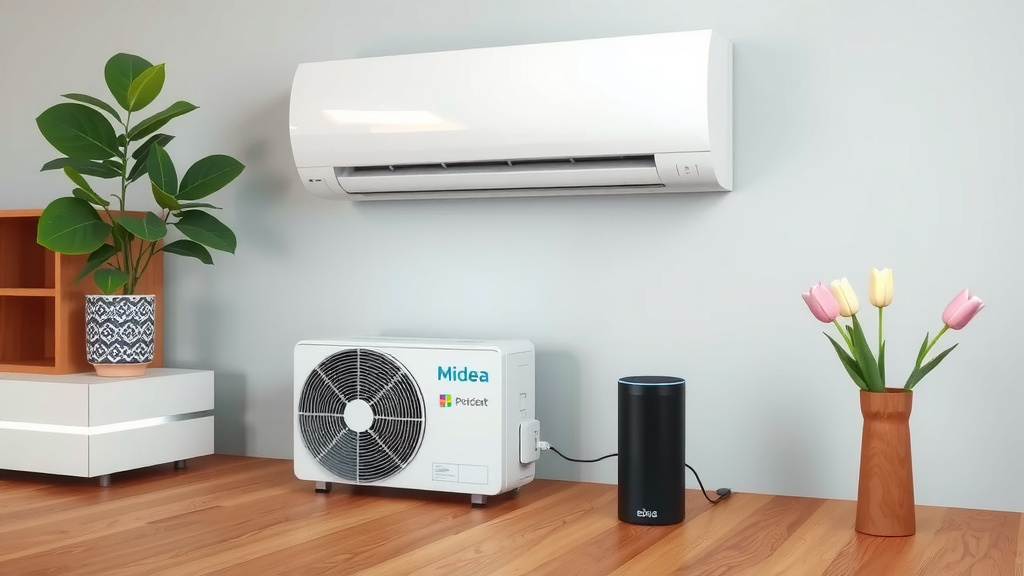
Once your Midea account is successfully linked, Alexa needs to find your air conditioner. You can either say, “Alexa, discover devices,” or you can manually initiate a device discovery within the Alexa app. To do this, go to Devices, tap the “+” icon, and then select “Add Device.” Choose “Air Conditioner” and follow the prompts. Alexa will then scan your network for compatible Midea devices. Within a minute or two, your air conditioner should appear in your list of Alexa-controlled devices. You might want to rename your AC in the Alexa app to something easier to remember, like “Living Room AC.”
Using Voice Commands with Your Midea AC and Alexa
Now for the fun part! You can start using voice commands to control your Midea air conditioner. It’s surprisingly intuitive. We found that most users quickly get the hang of it.
Basic Commands to Try
Here are some common commands you can use:
- “Alexa, turn on the Living Room AC.”
- “Alexa, set the Living Room AC to 72 degrees.”
- “Alexa, turn off the Living Room AC.”
- “Alexa, what is the temperature of the Living Room AC?”
- “Alexa, increase the fan speed on the Living Room AC.”
- “Alexa, decrease the fan speed on the Living Room AC.”
Experiment with these commands to get a feel for how responsive your AC is. You can also explore other settings like swing or mode (cool, fan, dry) if your Midea AC model supports them through the Midea Air app. We found that clear, direct commands work best.
Setting Up Routines and Schedules
For even greater convenience, you can use Alexa routines. Routines allow you to automate actions. For instance, you could create a routine that turns on your AC and sets it to a specific temperature every day at 5 PM. Or, you could have it turn off when you say, “Alexa, I’m leaving.”
Creating a Simple Routine
To set up a routine:
- Open the Alexa app.
- Tap “More” and then “Routines.”
- Tap the “+” icon to create a new routine.
- Choose a trigger, like a voice command (“Goodnight”), a specific time, or when you leave home.
- Add an action, such as “Smart Home,” then select your Midea AC and choose the desired setting (e.g., “Turn On” or “Set Temperature”).
We found that setting up routines can significantly enhance your comfort and potentially save energy by ensuring your AC isn’t running when you don’t need it. It’s a smart way to manage your home’s climate without constant manual adjustments.
Troubleshooting Common Issues
Sometimes, things don’t go as smoothly as planned. If you run into problems, here are a few common solutions we found helpful:
| Problem | Possible Solution |
|---|---|
| Alexa can’t discover the device | Ensure your Midea AC is connected to your 2.4GHz Wi-Fi. Restart your router and the Midea AC. Make sure you’ve enabled the Midea skill and linked your account correctly. Try “Alexa, discover devices” again. |
| Voice commands aren’t working | Check if the Midea skill is enabled and linked. Make sure your Midea AC is online in the Midea Air app. Try renaming your device in the Alexa app to something simpler. Ensure you’re using the correct device name in your commands. |
| Account linking failed | Double-check your Midea app username and password. Ensure you have a stable internet connection for both devices. Try unlinking and relinking the Midea skill. |
Remember, patience is key when setting up smart home devices. We found that most issues can be resolved by carefully following the steps and checking your network connection. A stable internet connection is your best friend for smart home control.
Quick Checklist Before You Start
To make sure you’re all set, run through this quick checklist:
- Midea Air conditioner is powered on.
- Home Wi-Fi network is working.
- Smartphone is connected to the same Wi-Fi.
- Midea Air app is downloaded and account created.
- Amazon Alexa app is downloaded and set up.
- You have your Midea account login details handy.
Once you’ve completed these steps, you’re all set to enjoy the convenience of controlling your Midea air conditioner with just your voice. It’s a fantastic way to keep your home comfortable without lifting a finger.
Conclusion
You’ve now learned how to connect your Midea air conditioner to Alexa, transforming your home into a more comfortable and responsive environment. By following these steps, you’ve enabled voice control, allowing you to adjust your AC settings effortlessly. We’ve seen how simple it is to link your Midea account via the Midea Air app and the Alexa app, leading to convenient voice commands and personalized routines. Take a moment to set up your first routine, perhaps for your morning wake-up or evening wind-down, and experience the convenience firsthand. Your smart home just got a little smarter!
Frequently Asked Questions
What if my Midea air conditioner doesn’t have Wi-Fi?
If your Midea air conditioner is not Wi-Fi enabled, it cannot connect to Alexa. You would need a Wi-Fi enabled Midea model to use this integration. Check your unit’s specifications or Midea’s website for model compatibility before purchasing.
Can I control multiple Midea air conditioners with Alexa?
Yes, you can control multiple Midea air conditioners with Alexa, as long as each unit is Wi-Fi enabled and set up in the Midea Air app. You can then link your single Midea account to Alexa and discover all connected devices.
What 2.4GHz Wi-Fi band is necessary for connection?
Most smart home devices, including Midea air conditioners, connect best to a 2.4GHz Wi-Fi band. This band typically offers a longer range than 5GHz. Ensure your router is broadcasting a 2.4GHz network and that your phone is connected to it during the setup process.
How do I fix it if Alexa can’t find my Midea AC?
If Alexa can’t discover your Midea AC, first ensure it’s connected to your 2.4GHz Wi-Fi network and online in the Midea Air app. Try restarting your router and AC unit, then ask Alexa to “discover devices” again. Also, verify that the Midea skill is enabled and your account is properly linked.
Can I control my Midea AC remotely with Alexa, not just at home?
Yes, as long as your Midea air conditioner is connected to your home Wi-Fi and your Alexa device has internet access, you can control it remotely. This means you can adjust your AC settings from anywhere using the Alexa app on your smartphone.


![7 Best Rated Residential Air Conditioners [2026]](https://bathroomexplorer.com/wp-content/uploads/2026/06/7-best-rated-residential-air-conditioners-2026-featured-768x432.jpg)