
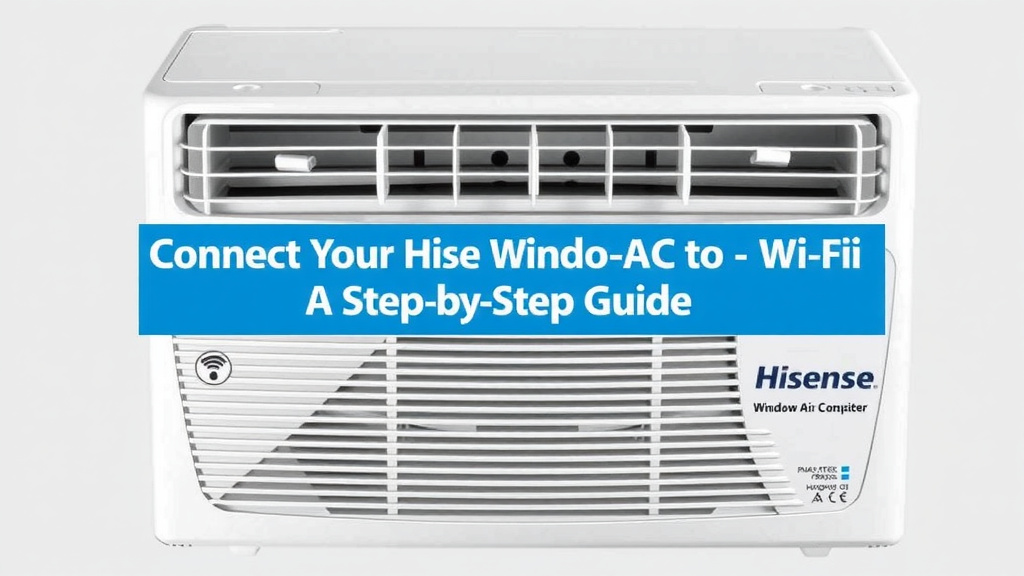
Connect Your Hisense Window AC to WiFi: A Step-by-Step Guide
Yes, you can absolutely connect your Hisense window air conditioner to your home Wi-Fi network! This lets you control your AC remotely using your smartphone or tablet. It’s a smart upgrade for your home’s comfort and convenience.
Connecting your Hisense AC to Wi-Fi is simpler than you might think. We found that this feature offers great flexibility. You can adjust settings before you even get home, saving energy and ensuring a cool welcome. Many users find this capability a real game-changer for managing their home environment.
- Connect your Hisense AC to Wi-Fi easily.
- Control your AC remotely with your phone.
- Save energy by adjusting settings from anywhere.
- Enjoy a cool home before you even arrive.
Ready to get your smart Hisense AC up and running? Let’s walk through exactly how to connect it to your Wi-Fi step by step.
Connecting Your Hisense Window AC to Wi-Fi
Getting your Hisense window air conditioner online is a great way to boost your home’s comfort and efficiency. You can manage your cooling from anywhere. We found that this connectivity makes home climate control much easier. Let’s get your smart AC set up without any hassle.
What You’ll Need Before You Start
Before we dive into the steps, make sure you have a few things ready. Having these items on hand will make the process smooth sailing. You don’t want to stop halfway through!
Your Home Wi-Fi Network Details
You’ll need your Wi-Fi network name (SSID) and password. This is essential for connecting any device to your internet. Double-check that you have the correct password. Typos are the most common reason for connection failures. We recommend writing them down if you’re unsure.
A Compatible Smartphone or Tablet
You’ll use your smartphone or tablet to control the AC. Make sure it’s connected to your home Wi-Fi network. Both iOS and Android devices are typically supported. Check your Hisense AC model’s manual for specific operating system requirements.
The Hisense Smart App
You need to download the official Hisense smart app. This app is your control center for the AC. Search for “Hisense Smart Air Conditioner” in your device’s app store. Install it on your smartphone or tablet. This app is free to download.
Your Air Conditioner’s Model Information
It’s helpful to know your specific Hisense window AC model number. You can usually find this on a sticker on the side or back of the unit. This information can be useful if you run into any unique setup issues. It helps ensure you’re following the right instructions for your device.
Step-by-Step Connection Guide
Let’s walk through connecting your Hisense window AC to your Wi-Fi. We’ve broken it down into simple, easy-to-follow steps. Think of it like adding another device to your home network.
1. Prepare Your Air Conditioner
First, ensure your Hisense window AC is properly installed and powered on. The unit needs to be operational before you can begin the Wi-Fi setup. Some models might require you to put the AC into a specific pairing mode. Consult your AC’s user manual for detailed instructions on this.
2. Download and Open the Hisense Smart App
If you haven’t already, download the Hisense Smart Air Conditioner app from your device’s app store. Once installed, open the app. You’ll likely need to create an account or log in if you already have one. This account links your devices to your control panel.
3. Add Your Air Conditioner in the App
Inside the app, look for an option to “Add Device” or a similar prompt, often represented by a plus (+) icon. Select your Hisense air conditioner from the list of available appliances. Your AC might show up as a “Window AC” or a specific model name.
4. Initiate Wi-Fi Pairing Mode on Your AC
This step is crucial. You need to tell your air conditioner to look for a Wi-Fi network. On your AC’s control panel or remote, you’ll usually find a button labeled “Wi-Fi,” “Smart,” or “Connect.” Press and hold this button for a few seconds. A blinking light or an indicator on the display will usually confirm it’s in pairing mode. Again, check your manual if you’re unsure!
5. Connect to Your Home Wi-Fi Network
Back in the Hisense app, you’ll be prompted to select your home Wi-Fi network from a list. Choose your network name (SSID) and enter your Wi-Fi password carefully. Make sure you are connecting to a 2.4GHz network, as most smart home devices, including Hisense ACs, do not support 5GHz networks. This is a common sticking point for many users.
We found that many routers offer both 2.4GHz and 5GHz bands. Your AC will only be able to connect to the 2.4GHz band. If you have a combined network name for both, you might need to check your router settings to ensure it’s broadcasting the 2.4GHz band appropriately. Many experts say that separating these bands or ensuring compatibility is key for smart device setup (Smart Home Guide).
6. Wait for the Connection to Complete
The app will now attempt to connect your AC to your Wi-Fi network. This usually takes a minute or two. You’ll see a progress indicator in the app. Once connected, the Wi-Fi indicator light on your AC should become solid, not blinking. The app will confirm the successful connection.
Troubleshooting Common Connection Issues
Sometimes, technology doesn’t cooperate perfectly on the first try. If you run into problems, don’t worry. We’ve identified some common issues and their solutions.
Incorrect Wi-Fi Password
Did you double-check your password? Even a single typo can prevent the connection. Try re-entering it carefully. If you recently changed your Wi-Fi password, you’ll need to update it in the app.
Using the Wrong Wi-Fi Band (5GHz vs. 2.4GHz)
As mentioned, Hisense window ACs typically only connect to a 2.4GHz Wi-Fi network. If your router broadcasts both 2.4GHz and 5GHz under the same name, your AC might struggle to connect. Try disabling the 5GHz band temporarily or ensuring your router has a distinct 2.4GHz network name that you can select in the app. Many router manufacturers offer guides on how to manage these bands.
Weak Wi-Fi Signal
If your AC is far from your Wi-Fi router, the signal might be too weak. Try moving the router closer if possible, or consider a Wi-Fi extender. The closer the AC is to the router, the more stable the connection will be.
App or AC Needs a Reset
Sometimes a simple restart can fix things. Try closing and reopening the Hisense app. You might also need to reset your air conditioner’s network settings. Check your manual for instructions on how to perform a factory reset on the AC’s Wi-Fi module.
Using Your Smart Hisense AC
Once connected, you can start enjoying the benefits of a smart air conditioner. The Hisense app puts control right at your fingertips.
Remote Control Features
You can turn your AC on or off, adjust the temperature, change fan speeds, and set timers, all from your smartphone. Imagine being able to cool your room before you even get home on a hot day!
Energy Saving Potential
By scheduling your AC or turning it off remotely when not needed, you can save on energy bills. Smart scheduling helps prevent the AC from running unnecessarily. Many sources suggest smart home devices can contribute to energy efficiency (Environmental Protection Agency).
Here’s a quick checklist to ensure a smooth setup:
- Confirm you have your correct Wi-Fi password.
- Ensure your smartphone is connected to your 2.4GHz home Wi-Fi.
- Download the latest version of the Hisense Smart App.
- Place your AC unit within good Wi-Fi signal range.
- Make sure your AC is powered on and ready for pairing.
- Be patient during the connection process; it can take a moment.
Conclusion
You’ve now learned how to connect your Hisense window air conditioner to your home Wi-Fi network. This setup brings a new level of convenience and efficiency to your home comfort. Imagine adjusting your AC from your couch or on your way home. You can now take full advantage of remote control features and potential energy savings. Go ahead and complete the setup process using the Hisense Smart app, and start enjoying smarter cooling today!
Frequently Asked Questions
What if my Hisense AC won’t connect to Wi-Fi?
First, double-check your Wi-Fi password for typos and ensure you’re connecting to a 2.4GHz network. Also, try restarting your router, phone, and the AC unit. Sometimes a simple refresh can solve the problem.
Can I control my Hisense AC from anywhere?
Yes, once your Hisense window AC is connected to your home Wi-Fi and paired with the Hisense Smart app, you can control it remotely from anywhere with an internet connection. This means you can adjust settings even when you’re not home.
Do I need a special router for my Hisense AC?
No, you don’t need a special router. Your standard home Wi-Fi router should work. The most important thing is ensuring it broadcasts a 2.4GHz network, as Hisense ACs typically don’t support 5GHz bands.
How do I put my Hisense AC into Wi-Fi pairing mode?
Usually, you press and hold the “Wi-Fi,” “Smart,” or “Connect” button on your Hisense AC’s remote or control panel for several seconds. A blinking indicator light on the unit will confirm it’s ready to pair.
Will the Hisense Smart App work on older AC models?
The app’s compatibility can vary by Hisense AC model. It’s best to check your specific air conditioner’s user manual or the Hisense website to confirm if your model supports Wi-Fi connectivity and the smart app.
![7 Best Quality Split System Air Conditioner [2026]](https://bathroomexplorer.com/wp-content/uploads/2026/06/7-best-quality-split-system-air-conditioner-2026-featured-768x432.jpg)