
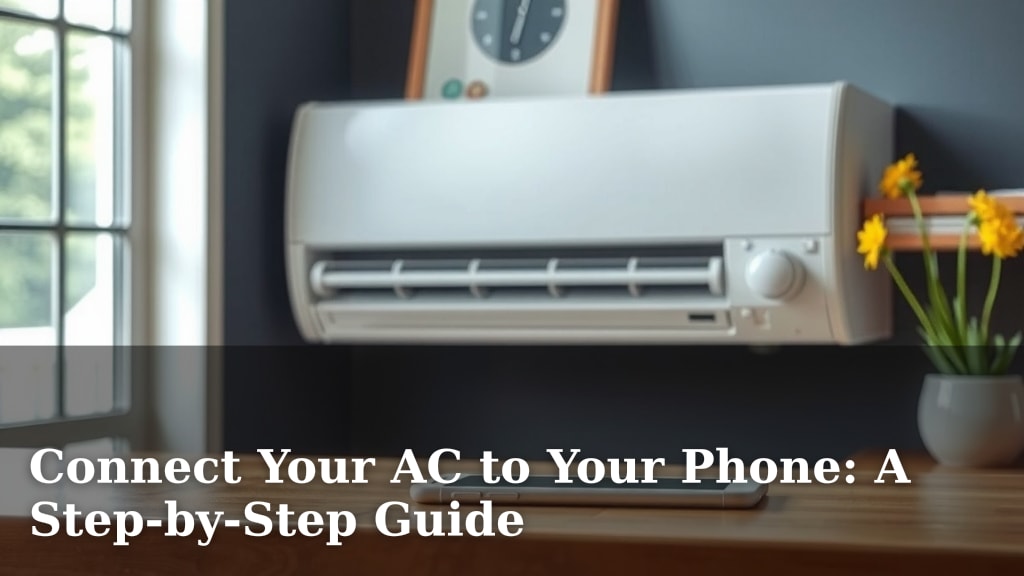
Connect Your AC to Your Phone: A Step-by-Step Guide
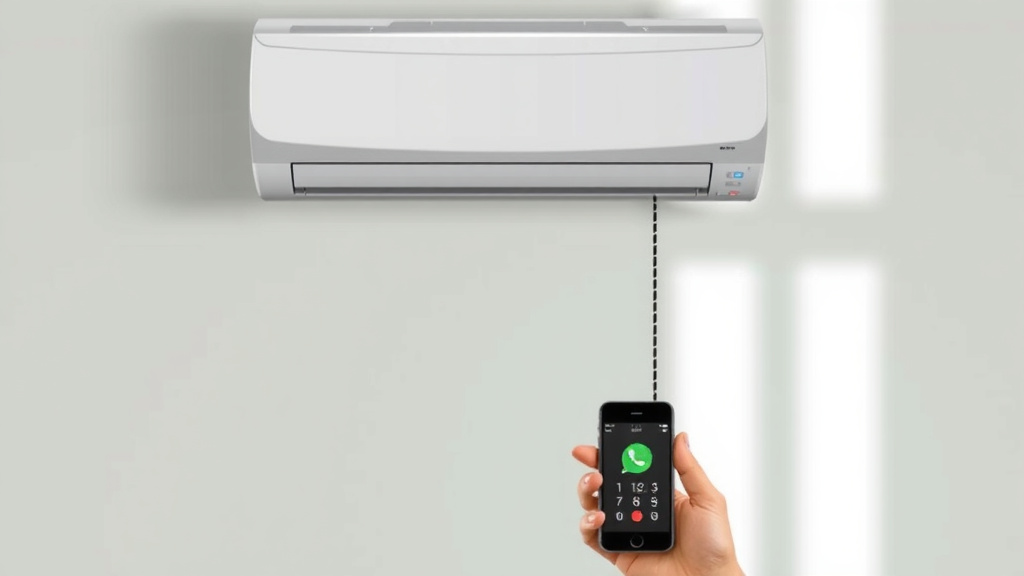
Yes, you can absolutely connect your air conditioner to your phone! It’s a pretty straightforward process for most smart AC units. This lets you control your home’s temperature right from your smartphone, even when you’re not home. Imagine cooling down your house before you even walk through the door – pretty neat, right?
Connecting your AC to your phone offers a whole new level of convenience. You can adjust settings, set schedules, and even monitor energy usage, all from the palm of your hand. This technology makes managing your home’s climate incredibly easy and efficient. Plus, it can help you save money on energy bills.
- Install the manufacturer’s app on your phone.
- Connect your AC to your home Wi-Fi network.
- Follow the app’s prompts to pair your AC.
- Control your AC remotely via the app.
Ready to take control of your comfort from anywhere? Let’s walk through the simple steps to get your smart AC connected to your phone.
You’re probably wondering, “Can my air conditioner really talk to my phone?” The short answer is yes, and it’s easier than you think! Most modern air conditioners, especially those labeled “smart,” are designed with this connectivity in mind. This allows you to become the ultimate temperature maestro, controlling your home’s climate from anywhere. Think about it: arriving home to a perfectly cool house on a scorching summer day. It’s not science fiction; it’s smart AC technology.
Making Your Air Conditioner Phone-Friendly
Connecting your AC to your phone opens up a world of convenience and control. You gain the ability to adjust settings, schedule cooling periods, and even keep an eye on your energy consumption, all from the device you likely have with you constantly – your smartphone. This isn’t just about comfort; it’s about efficiency and potential savings on your electricity bills.
Understanding Smart AC Technology
At its core, connecting your AC to your phone relies on Wi-Fi connectivity. Your air conditioner needs to be able to join your home’s wireless network. Once it’s online, it can communicate with a special app on your smartphone. This app acts as your remote control, but with many more features than a traditional one.
What You’ll Need for the Connection
Before you start, gather a few essentials. You’ll need your smartphone (either iOS or Android), access to your home’s Wi-Fi network name and password, and of course, a smart-enabled air conditioner. Most smart AC units will have an indicator light or a display screen showing their Wi-Fi status. If your AC isn’t explicitly marketed as “smart” or “Wi-Fi enabled,” it might not have this capability built-in. In that case, you might need to look into a smart thermostat or a Wi-Fi-enabled adapter, but for today, we’re focusing on units designed for direct app control.
The Step-by-Step Connection Process
Getting your AC hooked up to your phone is usually a straightforward process. Think of it like connecting a new smart speaker or a smart light bulb to your home network. The manufacturer designs these systems to be as user-friendly as possible.
Step 1: Download the Manufacturer’s App
The very first step is to find and download the official app for your specific air conditioner brand. You can usually find this by searching the app store on your smartphone. For example, if you have a LG smart AC, you’d look for the LG ThinQ app. If it’s a GE model, you might search for the GE Comfort app. It’s important to download the correct app for your unit to ensure compatibility and proper functionality.
Open the app and follow the on-screen instructions to create an account or log in if you already have one. This is standard practice for most smart home devices to manage security and your devices.
Step 2: Prepare Your Air Conditioner
Next, you’ll need to put your air conditioner into pairing mode. How you do this can vary slightly by brand. Often, you’ll need to press and hold a specific button on the AC unit itself for a few seconds, or select a network setup option on its digital display. Check your AC’s user manual for the exact instructions on how to activate its Wi-Fi setup mode. Some units might also require you to have Bluetooth enabled on your phone for the initial discovery process.
Step 3: Connect Your AC to Your Home Wi-Fi
Once your AC is in pairing mode, the app on your phone will guide you through connecting it to your home’s Wi-Fi network. You’ll typically select your home Wi-Fi network from a list that the app displays and then enter your Wi-Fi password. Make sure you’re connecting to a 2.4 GHz Wi-Fi network, as many smart devices, including AC units, don’t support 5 GHz networks. If you have a dual-band router, you might need to ensure the 2.4 GHz band is enabled.
This step is critical. Your AC needs a stable internet connection to communicate with the app when you’re away from home. Think of your Wi-Fi as the highway your AC uses to send and receive commands.
Step 4: Pair the App with Your Air Conditioner
After your AC is connected to Wi-Fi, the app will usually scan for available devices. You should see your air conditioner appear in the app. Select it and follow any final prompts to complete the pairing process. This might involve confirming a code displayed on the AC unit or simply naming your device (e.g., “Living Room AC”).
Step 5: Explore Your New Remote Control!
Congratulations! Your air conditioner is now connected to your phone. You can now open the app and start exploring all the features. You’ll likely find options to turn the unit on or off, adjust the temperature, change fan speeds, switch modes (cool, heat, fan, dry), and set timers or schedules. Some apps even offer energy usage reports or diagnostics. It’s like having a super-powered remote right in your pocket!
Troubleshooting Common Connection Issues
Sometimes, things don’t go exactly as planned. Don’t worry, most common issues are fixable. Here are a few tips.
Wi-Fi Signal Strength
If your AC is far from your Wi-Fi router, the signal might be weak. This can cause connection drops or prevent the initial setup. Try moving your router closer if possible, or consider a Wi-Fi extender to boost the signal in the area where your AC is located. A strong, stable connection is key.
Incorrect Password Entry
It sounds simple, but mistyping your Wi-Fi password is a common pitfall. Double-check that you’re entering it exactly, paying attention to uppercase and lowercase letters. Passwords are case-sensitive.
App or AC Reset
If you’re still having trouble, try a simple reset. Turn off your AC at the breaker for a minute, then turn it back on. You might also try uninstalling and reinstalling the app on your phone. Sometimes, a fresh start is all that’s needed to clear out any glitches.
Check Your Router Settings
Occasionally, your router’s firewall settings or network restrictions might be preventing the AC from connecting. You may need to log into your router’s administration page to check these settings. This is less common but worth investigating if all else fails. Many guides suggest ensuring that your router is not blocking new device connections (MAC filtering).
A Quick Checklist for Success
Let’s recap the essentials to ensure a smooth connection:
- Ensure your AC unit is Wi-Fi enabled.
- Download the correct manufacturer’s app.
- Have your home Wi-Fi name and password ready.
- Confirm you’re connecting to a 2.4 GHz network.
- Follow the app’s pairing instructions carefully.
- Check your user manual for specific AC setup steps.
Conclusion
You’ve now learned how to connect your air conditioner to your phone, turning your home into a smart, comfortable space. It’s a pretty simple process that brings a lot of convenience. You can now control your AC from anywhere, helping you save energy and stay cool.
Remember to download the right app and follow the steps carefully. Your smart AC is now ready to work for you!
Give it a try today! You’ll be enjoying remote climate control in no time.
Frequently Asked Questions
What if my air conditioner isn’t a “smart” model?
If your AC doesn’t have built-in Wi-Fi, you might still be able to control it remotely. You can often use a smart thermostat designed to work with traditional AC units. Another option is a Wi-Fi enabled smart plug, though this usually only allows you to turn the unit on or off, not adjust settings.
Can I connect my AC to my phone using Bluetooth instead of Wi-Fi?
Most smart AC units connect to your phone via Wi-Fi, not Bluetooth. Bluetooth is typically used for the initial device discovery or setup process. Once connected, your phone communicates with the AC over your home’s Wi-Fi network, allowing for remote control even when you’re away from home.
Why do I need to connect to a 2.4 GHz network and not 5 GHz?
Many smart home devices, including air conditioners, are designed to operate on the 2.4 GHz Wi-Fi band. This band offers a longer range and better penetration through walls compared to the 5 GHz band, which is generally faster but has a shorter range. Your AC likely needs that wider coverage.
How do I reset my air conditioner if the connection isn’t working?
If you encounter connection problems, try a simple reset. You can often do this by turning off the power to your AC unit at the circuit breaker for about a minute, then turning it back on. You can also try restarting your Wi-Fi router. Sometimes, re-installing the manufacturer’s app on your phone can help too.
Can multiple people control the same smart air conditioner with their phones?
Yes, typically multiple users can control a smart air conditioner. You’ll usually need to set up the primary account through the manufacturer’s app. Then, you can typically invite other family members or household members to access and control the device through their own app accounts, often by sharing access within the app’s settings.

![7 Best Portable Water Cooled Air Conditioner [2026]](https://bathroomexplorer.com/wp-content/uploads/2026/06/7-best-portable-water-cooled-air-conditioner-2026-featured-768x432.jpg)